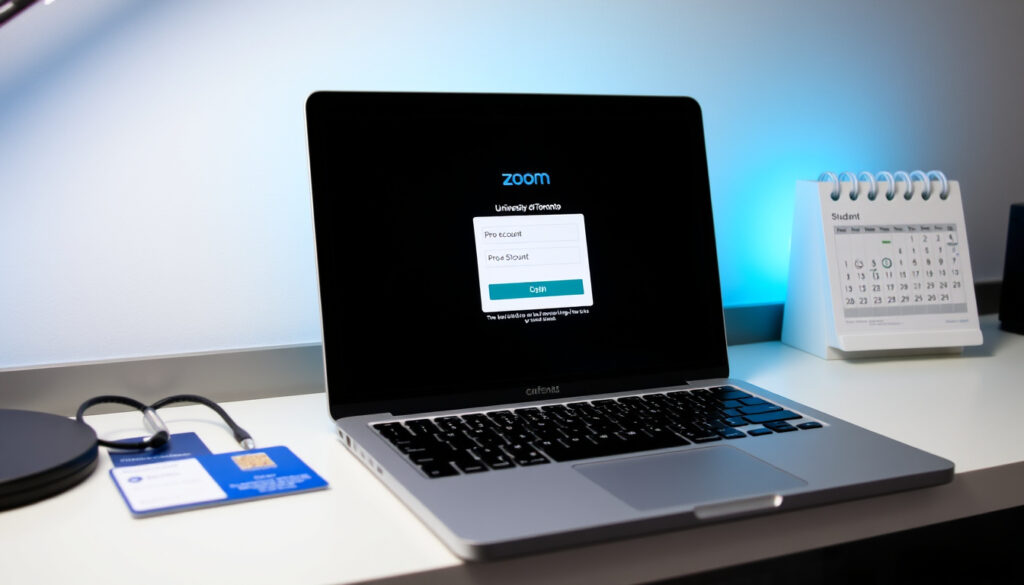
U of T Zoom Free Pro Account: Student Login Guide (2025)
Few student perks fly under the radar quite like the free Zoom Pro account that comes with your U of T email. Over 60,000 students, faculty, and staff already have access through the university’s campus-wide license — yet many undergraduates never activate theirs.
U of T Zoom account holders: over 60,000 · Free Zoom Pro for students: available via UTORid · Meeting time limit (basic free): 40 minutes · U of T Zoom Pro limit: no 40-minute cap
Quick snapshot
- U of T provides free Zoom Pro accounts to all students, faculty, and staff (U of T Zoom portal (official university service))
- Login via SSO with UTORid activates the license (U of T Engineering IT team (technical support documentation))
- Licensed accounts remove the 40-minute meeting limit (U of T Centre for Teaching Support & Innovation (official teaching resource))
- Exact cloud recording storage quota per user
- Future pricing changes for the university license
- Specific webinar licensing limits for departments
- March 2020: Campus-wide Zoom license launched for pandemic teaching (U of T Centre for Teaching Support & Innovation (official teaching resource))
- 2023: License renewed with continued free access for all affiliates (U of T Zoom portal (official university service))
- Continued free Pro access as long as U of T maintains the campus license
- Potential feature upgrades tied to Zoom’s enterprise roadmap
- Possible expansion of cloud storage limits for teaching staff
Five key specs, one pattern: U of T’s licensed Zoom Pro goes well beyond the free tier that most Canadians use at home. Here’s what every account holder actually gets.
| Feature | U of T Zoom Pro | Free Personal Zoom |
|---|---|---|
| Meeting duration | Unlimited | 40-minute cap |
| Maximum participants | 300 | 100 |
| Cloud recording | Included (limited storage) | Not included |
| SSO login | UTORid via utoronto.zoom.us | Email/password only |
| Breakout rooms | Yes | Yes (limited) |
| Polling & Q&A | Yes | Yes (basic) |
| Webinar hosting | Separate license required | Not available |
The trade-off: you give up nothing compared to a paid personal Pro plan, and the university absorbs the per-seat cost. The only catch is you need to sign in the right way.
Do U of T students get free Zoom?
Yes — every student, faculty member, and staff with an active UTORid can claim a fully licensed Zoom Pro account at no personal cost. The U of T Zoom portal (official university service) states that these accounts are required for hosting or participating in university classes, meetings, and webinar sessions. In other words, it’s not a perk you need to ask for — it’s the standard tool for course delivery.
What is included in the free U of T Zoom account?
- Unlimited meeting duration — no 40-minute cutoff (U of T Centre for Teaching Support & Innovation (official teaching resource))
- Up to 300 participants per session
- Cloud recording with storage retained for up to 365 days (instructors and TAs)
- Breakout rooms, polling, Q&A, and waiting room features
How does it compare to free personal Zoom?
- A free personal Zoom account limits group meetings to 40 minutes and 100 participants.
- The U of T Pro license removes both caps and adds cloud recording and advanced meeting controls.
- No credit card needed — the university pays the per-seat annual fee.
The implication: if you’ve been using a personal Zoom link for study groups or office hours, you’re leaving better features on the table. The university has already paid for them.
Students who don’t activate their U of T Zoom Pro account are effectively ignoring a benefit worth roughly $15.99/month — the cost of a personal Pro plan — because they never visit utoronto.zoom.us to complete the SSO login.
How do I log in to U of T Zoom?
The login flow takes about 90 seconds, but the exact steps differ slightly between desktop and mobile. Here’s the sequence that works every time.
Step-by-step U of T Zoom SSO login
- Go to utoronto.zoom.us and click “Login To Zoom”.
- Select “Sign in with SSO” and enter the domain:
utoronto.zoom.us(U of T Centre for Teaching Support & Innovation (official teaching resource)). - Authenticate with your UTORid and password on the U of T login page.
- Once redirected, your Pro license activates automatically.
Login on desktop vs mobile app
- Desktop: Open the Zoom app, click “Sign In with SSO”, enter
utoronto.zoom.us, and authenticate. - Mobile: Open the Zoom app, tap “Sign In with SSO”, enter the same domain, and complete the UTORid prompt.
- First-time visitors to the portal may be directed to an ACT Toronto page with critical account information before proceeding.
Troubleshooting common login errors
- “Invalid domain” — make sure you typed
utoronto.zoom.usexactly. No “www”, no “https://” prefix. - “Account not found” — confirm your UTORid is active via the U of T Information & Instructional Technology Services (official help desk).
- “U of T” not showing as account name — the U of T Engineering IT team (technical support documentation) says to log out and sign in again via the portal using your UTORid.
Why this matters: signing in with a personal Google or email account instead of SSO is the #1 reason students end up with a free 40-minute-limited account and think that’s all they get.
If your Zoom client shows “Basic” or “Free” under your account plan in settings, you signed in the wrong way. Log out, use the SSO route with utoronto.zoom.us, and the account will switch to “Licensed” or “Pro” automatically.
What is the U of T Zoom meeting time limit?
This is the most common point of confusion — and it has a simple answer. Free personal Zoom cuts group meetings at 40 minutes. U of T licensed accounts do not.
Standard 40-minute limit on free Zoom
- A free personal Zoom account hard-stops group meetings of 3+ participants at 40 minutes.
- One-on-one meetings on the free tier have no time limit.
- This 40-minute cap is Zoom’s official pricing policy.
U of T licensed accounts remove the limit
- U of T Pro accounts have no meeting duration limit for any meeting type (U of T Centre for Teaching Support & Innovation (official teaching resource)).
- This applies to students, faculty, staff, and TAs alike.
- A 3-hour lecture, a 6-hour workshop — no interruption.
Limits on large meetings or webinars
- Standard Pro accounts cap participants at 300 per session.
- Webinars (e.g., guest lectures with 500+ attendees) require a separate webinar license that departments can request.
- The exact availability of webinar licenses across faculties is not consistently documented in public U of T resources.
The catch: if you join a meeting using a personal Zoom account — even if the host is using U of T Zoom — your own client still enforces the 40-minute limit when you host your own sessions. You need to be signed in with your U of T license to get unlimited hosting.
How do I get a U of T Zoom Pro account?
You don’t need to submit a request, fill out a form, or visit an office. The activation is automatic — provided you log in correctly.
Activating your free Pro license
- Visit utoronto.zoom.us and sign in with your UTORid via SSO (U of T Engineering IT team (technical support documentation)).
- The system provisions the Pro license on first successful login.
- No credit card, no approval, no waiting period.
Verifying your account status
- Open the Zoom desktop client, click your profile picture, and select “Account Profile”.
- Look for “U of T” as the Account Name (U of T Engineering IT team (technical support documentation)).
- If you see a different name or “Basic”, you’re not on the U of T license — log out and re-authenticate via the SSO portal.
Renewing or updating your license
- The license remains active as long as you are a U of T affiliate with an active UTORid.
- Accounts are renewed each academic year — no action needed on your part.
- The U of T Zoom portal (official university service) recommends periodically checking for client updates under the “Check for Updates” option in the dropdown menu.
The pattern: one login, one license, zero bureaucracy. The hardest part is remembering to use the SSO route instead of the personal email sign-in you’ve been conditioned to use.
Is U of T Zoom free for faculty?
Yes — and in some ways faculty get even more from the license than students do. Teaching staff and TAs have access to extended cloud recording retention and dedicated support channels.
Faculty eligibility
- Faculty, staff, and teaching assistants are part of the same U of T community that can create licensed Zoom accounts (U of T Engineering IT team (technical support documentation)).
- The same SSO login process applies — no separate application needed.
Differences from student license
- Instructors and TAs get Zoom Cloud recordings with storage for up to 365 days (U of T Centre for Teaching Support & Innovation (official teaching resource)).
- Students also get cloud recording, but retention limits per user are not consistently documented.
- Departments can request webinar licenses for large-scale events — these are evaluated on a case-by-case basis.
Using Zoom for teaching
- Instructors can host unlimited meetings with up to 300 participants (U of T Centre for Teaching Support & Innovation (official teaching resource)).
- Breakout rooms can be pre-assigned for small-group work.
- Polling and Q&A features support interactive lectures and tutorials.
What this means: for faculty who have been relying on their personal Zoom account for office hours or department meetings, switching to the U of T license unlocks recording storage and participant limits that the free tier simply doesn’t offer. The university has already built these capabilities into the license — using them is just a matter of logging in correctly.
U of T Zoom Pro: Features & Specifications
Six capabilities, one thread: every feature listed below is included in the campus license at no additional personal cost. Here’s what you can actually do once you’re signed in with your UTORid.
| Specification | Details | Source |
|---|---|---|
| Meeting participants | Up to 300 | U of T Teaching Support |
| Meeting duration | Unlimited (no cap) | U of T Teaching Support |
| Cloud recording retention | Up to 365 days (instructors/TAs) | U of T Teaching Support |
| SSO authentication | UTORid via utoronto.zoom.us | U of T Zoom Portal |
| Breakout rooms | Yes, with pre-assignment | U of T Teaching Support |
| Polling & Q&A | Yes, included | U of T Teaching Support |
| Waiting room | Yes, customizable | U of T Zoom Portal |
| Webinar hosting | Separate license required | U of T Teaching Support |
| Client updates | Check via dropdown menu | U of T Zoom Portal |
| Cost to affiliate | Free (university covers fee) | U of T Engineering IT |
The trade-off: the only feature you might miss is webinar hosting for large public events — otherwise the Pro license matches or exceeds what most paid personal plans offer. For everyday teaching, group work, and meetings, there’s nothing missing.
Students who sign in with a personal email address instead of their UTORid via SSO will see “Basic” or “Free” in their account settings — and will still hit the 40-minute wall. The license only activates when you authenticate through the U of T domain at utoronto.zoom.us.
Pros and cons of U of T Zoom
Upsides
- Free Pro license for every student, faculty, and staff member
- No 40-minute meeting limit on any session
- Up to 300 participants per meeting
- Cloud recording with extended retention for instructors
- SSO integration with existing UTORid — no new password to remember
- Breakout rooms, polling, and Q&A included at no extra cost
Downsides
- Webinar hosting requires a separate departmental license
- Cloud storage quota per user is not transparently documented
- License renewal depends on university-wide contract decisions
- Login flow is not obvious — many students sign in the wrong way and miss the Pro features
- No phone support for individual account issues
The pattern: the upsides are structural (free, unlimited, university-paid), while the downsides are mostly about awareness and documentation gaps. The features themselves are robust.
How to set up and use U of T Zoom
Four steps, under two minutes. Here’s the shortest path from zero to a fully licensed U of T Zoom Pro account.
Step 1: Visit the U of T Zoom portal
Go to utoronto.zoom.us in any browser. Click the “Login To Zoom” button. You’ll be taken to the U of T Zoom portal (official university service) sign-in page.
Step 2: Sign in with SSO
- Select “Sign in with SSO” and enter the domain:
utoronto.zoom.us(U of T Centre for Teaching Support & Innovation (official teaching resource)). - You’ll be redirected to the U of T authentication page. Enter your UTORid and password.
Step 3: Verify your license
- After logging in, open the Zoom desktop client and go to Account Profile.
- Confirm that “U of T” appears as the Account Name (U of T Engineering IT team (technical support documentation)).
- If it doesn’t, log out and sign in again via the portal using your UTORid.
Step 4: Schedule your first meeting
- Click “Schedule” in the Zoom client and set your meeting options.
- Enable the waiting room, breakout rooms, or polling as needed.
- Share the join link with classmates or colleagues — your license is active.
Why this matters: the four-step flow is deliberately simple. The only friction point is Step 2 — using SSO with the correct domain instead of the email-password method that most students default to.
What we know vs what’s unclear
Confirmed facts
- U of T provides free Zoom Pro accounts to all students, faculty, and staff (U of T Zoom portal (official university service))
- Login requires SSO via UTORid (U of T Engineering IT team (technical support documentation))
- Meeting time limit is removed for licensed accounts (U of T Centre for Teaching Support & Innovation (official teaching resource))
- Licenses are renewed each academic year
- Instructors get 365-day cloud recording retention (U of T Centre for Teaching Support & Innovation (official teaching resource))
- Up to 300 participants per meeting (U of T Centre for Teaching Support & Innovation (official teaching resource))
What’s unclear
- Exact cloud recording storage quota per user — the U of T pages do not publish a specific GB limit
- Future pricing and contract terms for the university-wide license beyond the current renewal period
- Specific webinar license availability and limits for each faculty or department
- Whether students’ cloud recordings have the same 365-day retention as instructor recordings
- What happens to recordings and account data after graduation or separation from the university
What U of T says about its Zoom service
“University of Toronto users are instructed to obtain a Zoom account by clicking the ‘Login To Zoom’ button and signing in with UTORid credentials. These accounts are required to host and participate in Zoom-based classes, meetings, and webinar sessions.”
— U of T Zoom portal (official university service)
“Instructors and teaching assistants can host meetings with unlimited minutes for up to 300 participants. They also have access to Zoom Cloud for recordings up to 365 days.”
— U of T Centre for Teaching Support & Innovation (official teaching resource)
“A U of T community member — faculty, staff, students, and teaching assistants — can create a licensed University of Toronto Zoom account. You can verify by checking whether ‘U of T’ appears as the Account Name in Account Profile.”
— U of T Engineering IT team (technical support documentation)
“U of T students have access to a free Zoom Pro account that removes the 40-minute meeting limit and provides additional features including cloud recording and breakout rooms.”
The message from U of T is consistent across every official channel: a licensed account is available to anyone with a UTORid, the process is self-service, and the feature set matches or exceeds a personal Pro subscription.
For the student or faculty member who hasn’t yet activated their U of T Zoom login, the choice is clear: visit utoronto.zoom.us, sign in with SSO, and unlock the full Pro license in under two minutes — or keep using a personal free account that cuts you off at 40 minutes and limits your participants. The university has already paid for the upgrade. The only step left is yours.
For a comprehensive walkthrough of setting up your account, check out the U of T Zoom login guide for step-by-step instructions.
Frequently asked questions
Can I use my personal Zoom account for U of T classes?
You can join meetings with a personal account, but you must use your U of T licensed account to host classes or official meetings. The personal account will still have a 40-minute limit if you host your own sessions.
How do I schedule a recurring class meeting on U of T Zoom?
After signing in with your UTORid via SSO, click “Schedule” and select “Recurring meeting.” You can set the frequency (daily, weekly, etc.) and the system will generate a single link that works for all sessions.
What devices support U of T Zoom?
Zoom works on Windows, macOS, Linux, iOS, and Android. The SSO login flow is identical across all platforms. The U of T Zoom portal (official university service) recommends keeping the desktop client updated via the “Check for Updates” menu.
Is there a limit on the number of meetings I can host?
No. U of T Zoom Pro accounts have no limit on the number of meetings you can schedule or host. You can run multiple concurrent sessions as long as participant limits are respected.
Can I share my U of T Zoom license with family?
No. The license is tied to your UTORid and is for academic use only. Sharing your account credentials violates the U of T Zoom portal (official university service) terms of service.
What happens to my Zoom account after graduation?
Your UTORid and associated Zoom license will eventually expire after graduation. You can download any cloud recordings before the account deactivates. After that, you can continue using a free personal Zoom account or upgrade to a paid plan independently.
How do I update my profile picture on U of T Zoom?
Sign in at utoronto.zoom.us, go to “My Profile,” and click the camera icon to upload a new picture. Changes sync across all devices where you’re signed in with SSO.
More related posts
 Best Chess Openings for Beginners: Top Beginner Picks
 Julian McMahon Dies at 56: Cause, Relationships & Legacy
 Queen Victoria: Biography, Facts, Children & Death
 Pete Townshend: Daltrey, Led Zeppelin, and Net Worth
 Carnet de Santé en Ligne: How to Access Your Online Health Record
 Alan Rickman: Cause of Death, Career, and Personal Life
 Chris Stapleton: Illness, Wife, Tour, Facts Answered
 BTS Members: Names, Ages, and Wealth Rankings
